Gemini
Add Manh to Gemini through Connected Apps, link your account, sign in to manh.run, then call @Manh in a chat.
Add Manh
-
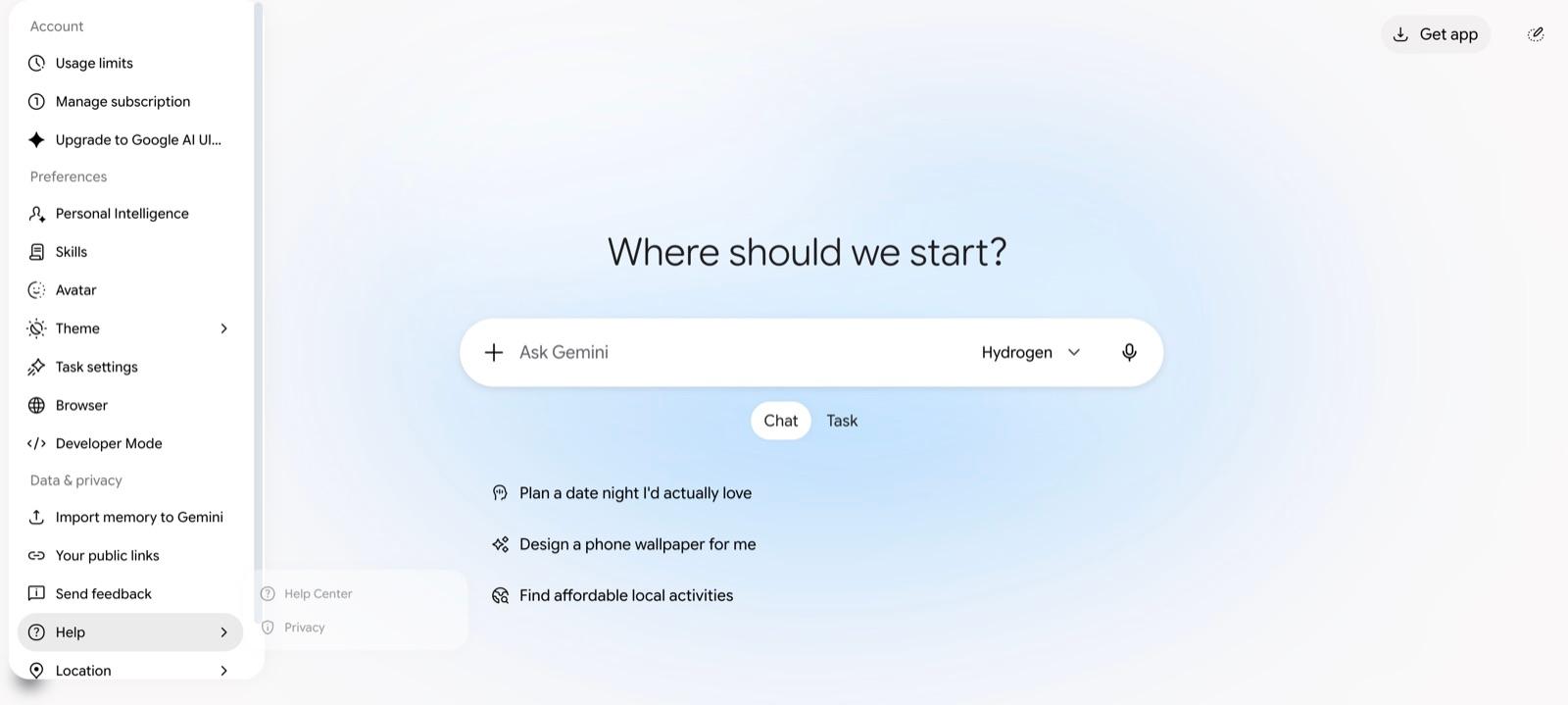
On gemini.google.com, select the Settings gear in the bottom-left corner, then select Personal Intelligence.
-
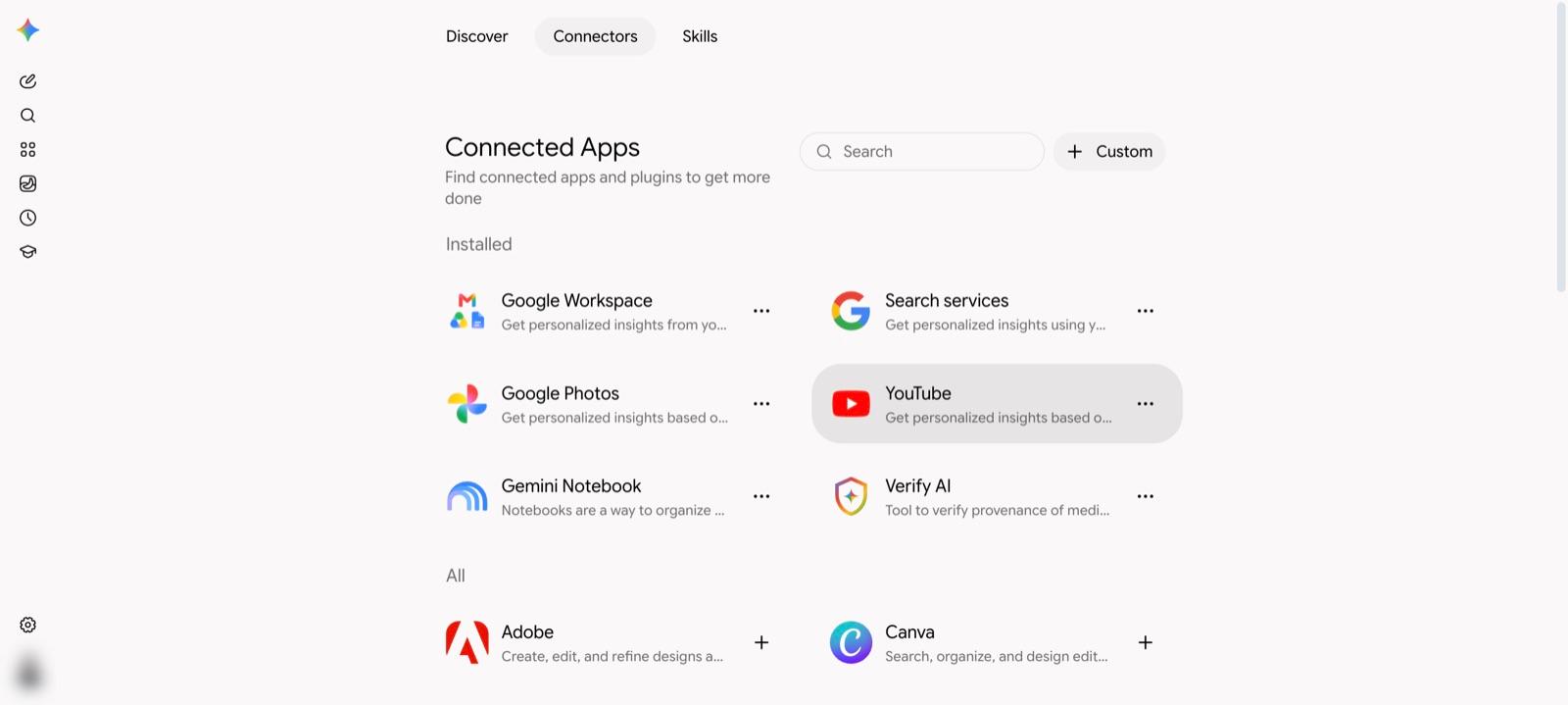
Open Connected Apps, then select + Custom in the top-right corner.
-
Paste
https://mcp.manh.runinto MCP Server URL, then select Next.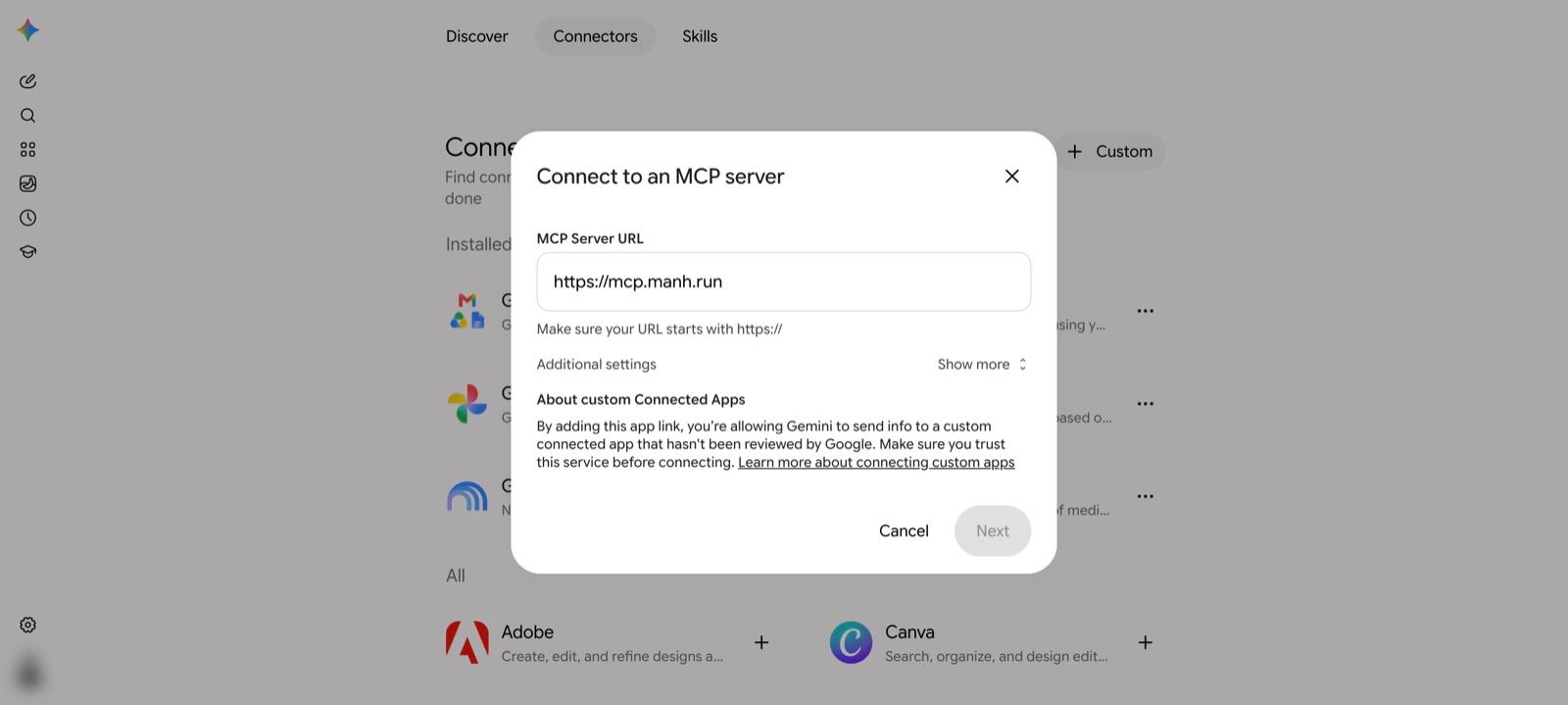
-
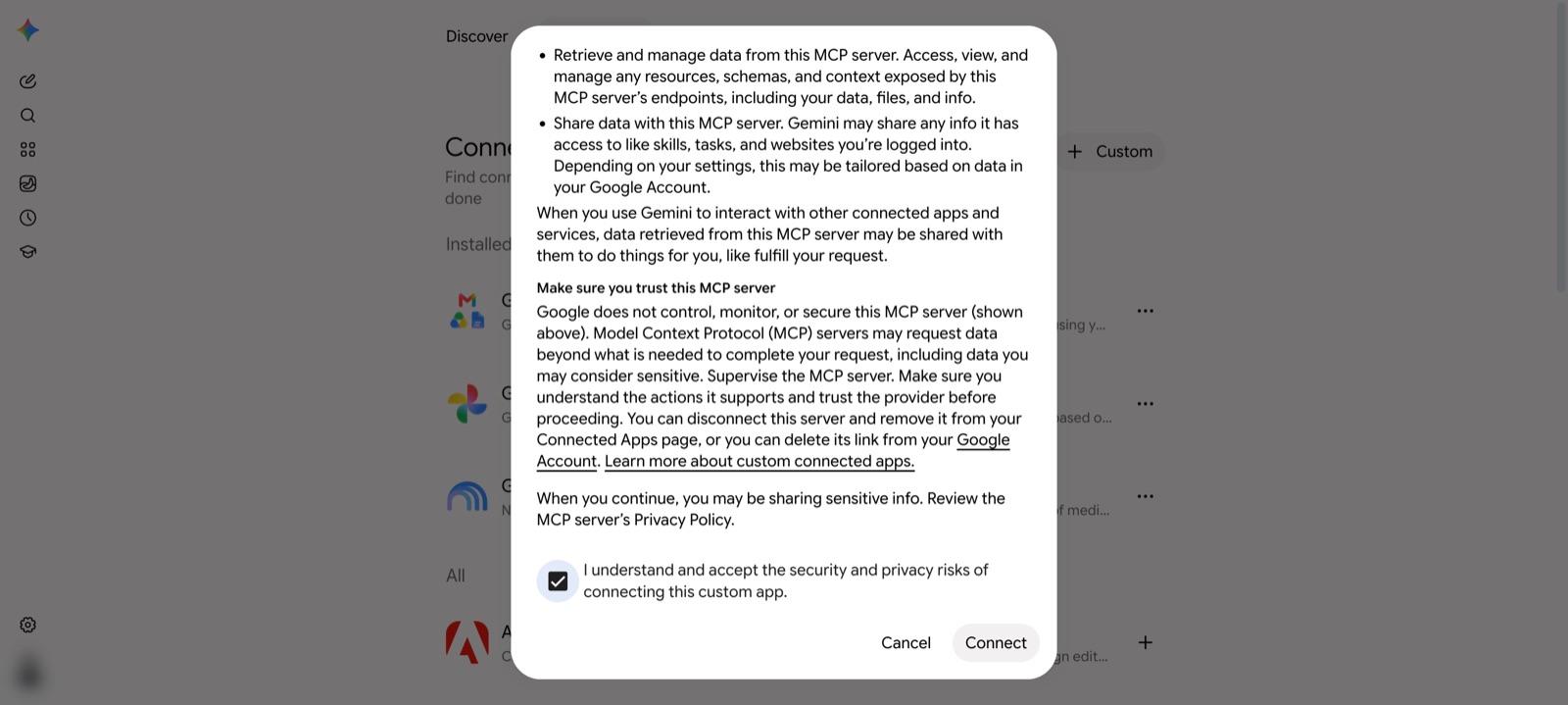
Read the notice, scroll to the end, check I understand and accept…, then select Connect.
-
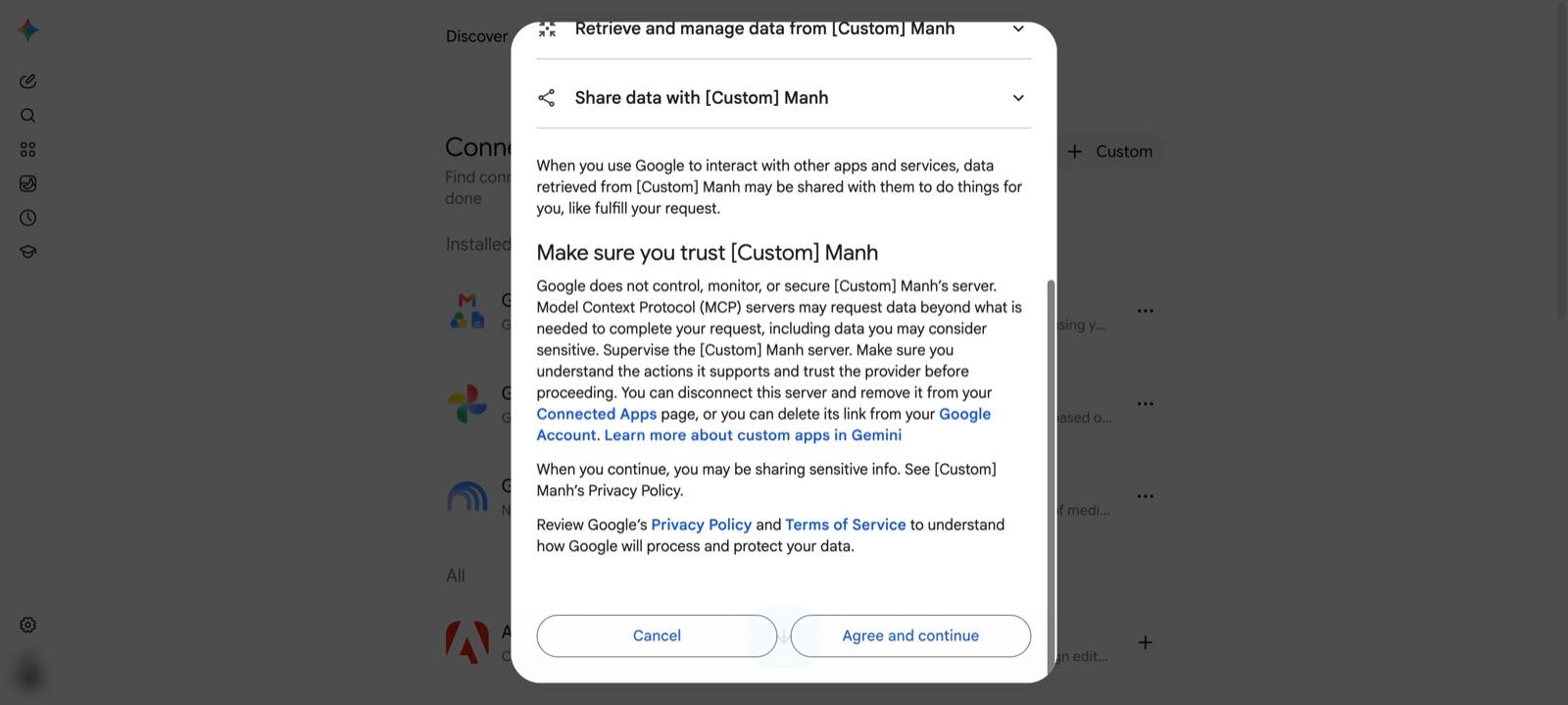
Google asks to link your Google Account with Manh. Scroll down, then select Agree and continue.
-
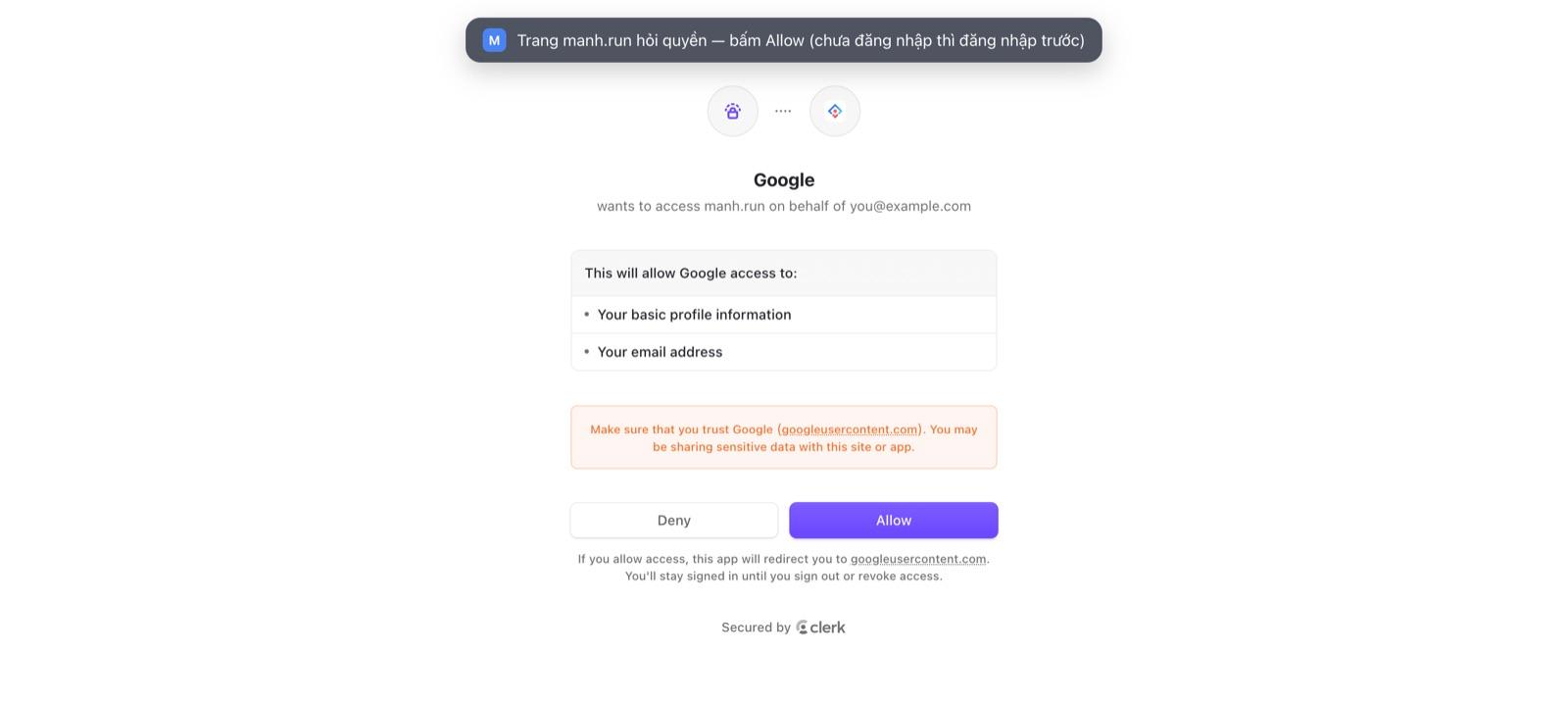
Sign in to manh.run if asked, then select Allow.
-
Gemini loads Manh’s tools, which takes about half a minute. Keep the name
Manh, then select Connect. Manh appears under Custom apps at the bottom of the page.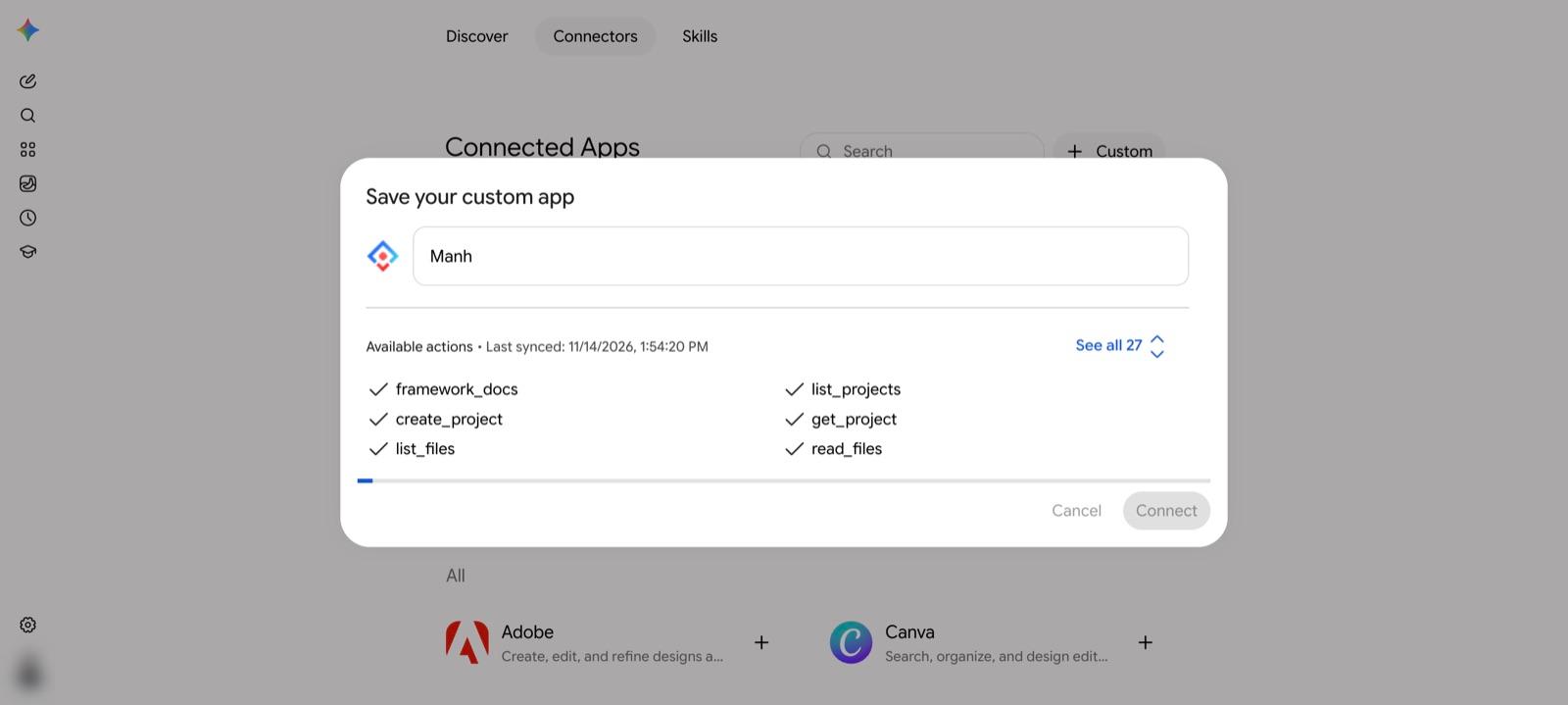
Use Manh in a chat
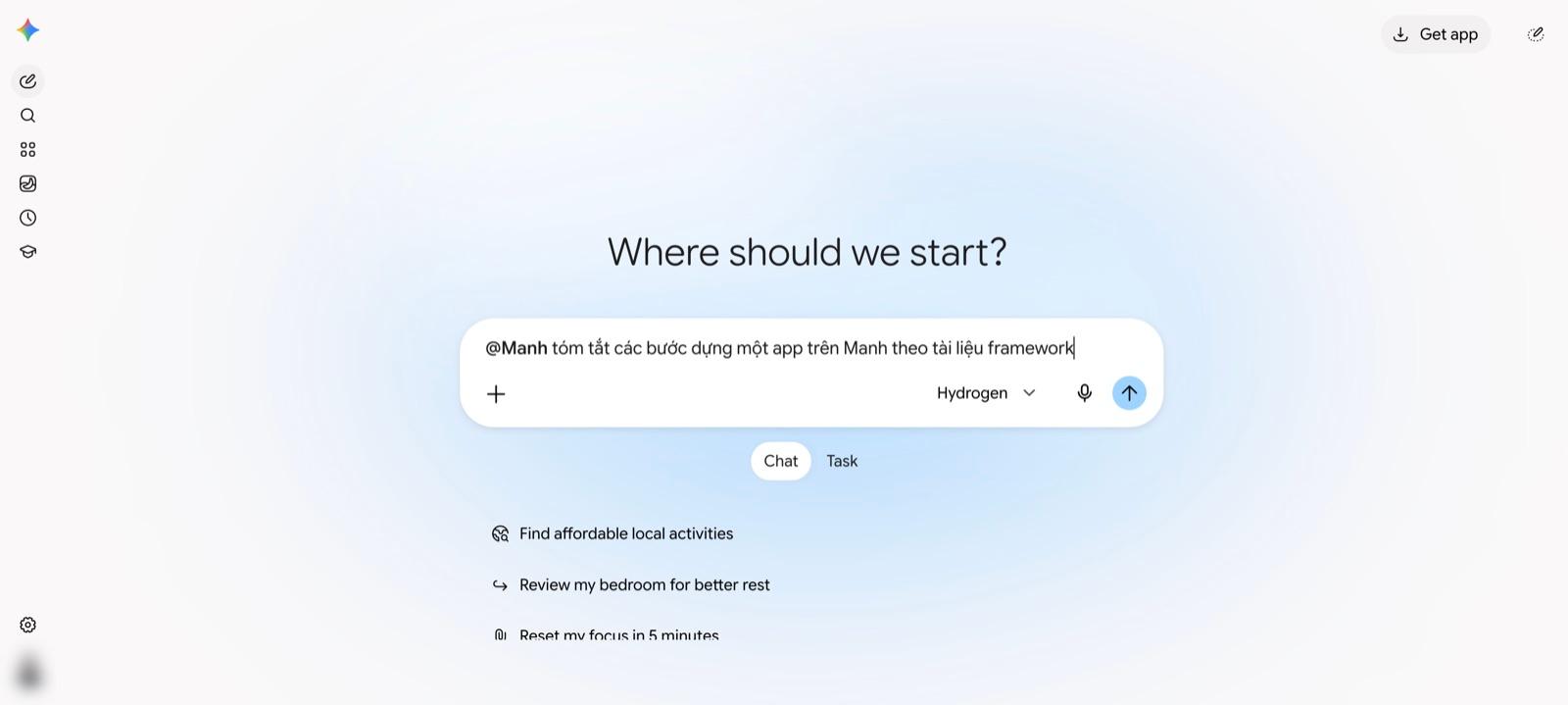
In a new chat, type @Manh, pick Manh under Connectors, then write your request.
Good to know
- Gemini calls Manh only when the chat includes
@Manh. - + Custom depends on your account’s plan and region. If you don’t see it, that account doesn’t have the feature yet.
- If Gemini says “We had trouble connecting to this server”, select Next once more.
Next steps
- Check the connection — ask the agent for your project list.
- Your first app — give the agent its first brief.